
Adding an Employee
How a group admin creates a new employee record across any company in the group
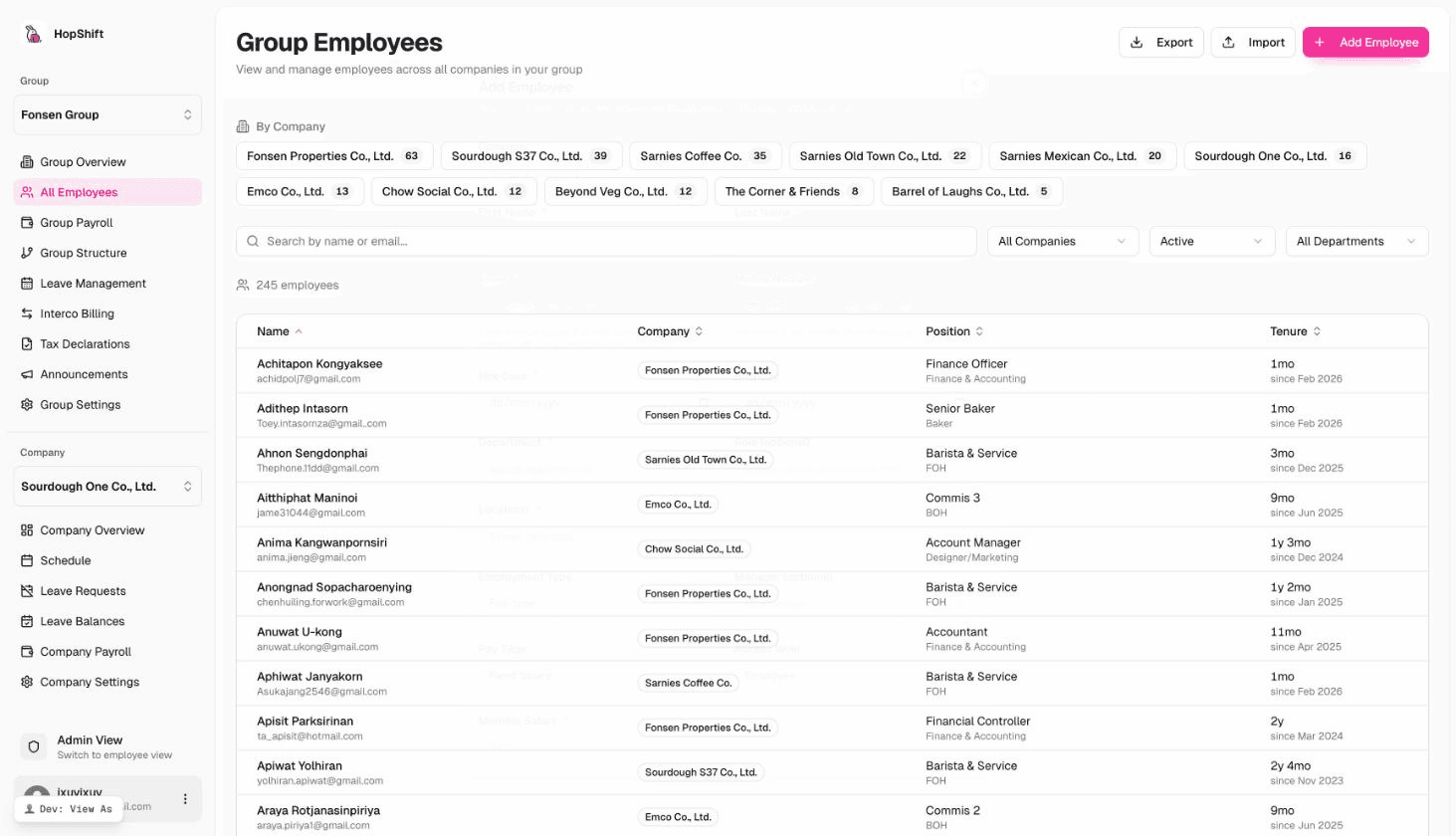
As a Group Admin you can create employees for any company in your group from a single place — the Group Employees page. You do not need to switch company context first.
Opening the form
- In the left sidebar, navigate to Group → Employees.
- Click the Add Employee button (top-right of the page).
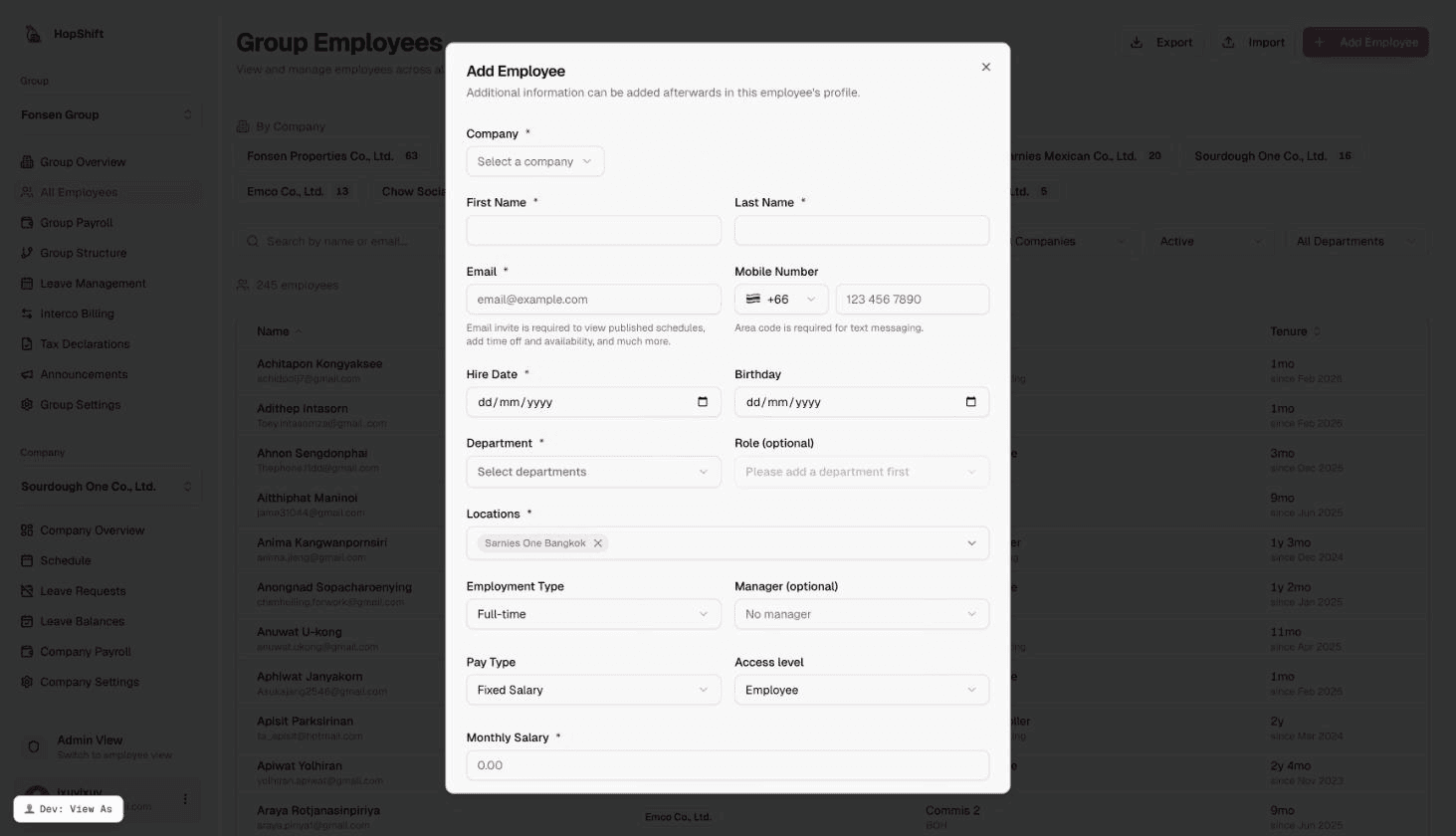
The Add Employee modal opens. It walks you through all the information needed to get the employee into payroll, scheduling, and leave — right from the start.
Required fields
These fields must be filled before you can save the employee:
| Field | Notes |
|---|---|
| Company | Which company within your group this employee belongs to. This determines their payroll entity, leave policies, and which schedules they appear in. |
| First Name | Legal English first name. |
| Last Name | Legal English last name. |
| Used for login, invite, and notifications. Must be unique across the company. | |
| Hire Date | The employee's official start date. Affects leave accrual, payroll proration, and probation tracking. |
| Department | Assigns the employee to a business function (e.g. Kitchen, Service, Finance). |
| Location(s) | Which outlet(s) the employee works at. At least one is required for scheduling. |
| Monthly Salary / Hourly Rate | The employee's pay amount. Required when Pay Type is set to Salary, Hourly, or Daily. |
Hire Date and Salary are required. An employee created without a hire date will not accrue leave correctly. An employee created without a salary amount will produce a zero-pay result on their first payroll run.
Employment details
These fields are shown in the main form and should be filled at creation time:
| Field | Default | Notes |
|---|---|---|
| Hire Date | — | Required. See above. |
| Birthday | — | Required for Thai payroll (see below). Recommended for all employees. |
| Employment Type | Full-time | Full-time, Part-time, Contract, or Intern. Affects leave entitlements and payroll calculations. |
| Manager | None | Sets who approves this employee's leave requests. Select from existing employees in the same company. |
| Pay Type | Fixed Salary | Salary (monthly), Hourly, or Daily. |
| Salary / Rate | — | The amount for the selected pay type. |
| Access Level | Employee | Controls what the employee can see and do in the app: Employee, Manager, or Admin. |
Thai payroll compliance fields
For companies based in Thailand, a Payroll & Compliance (Thailand) section appears automatically when you select a Thai company. It opens by default since these fields are required for payroll finalization.
| Field | Required | Notes |
|---|---|---|
| Birthday | Yes (TH) | Required for PND1 withholding tax filings and age-based payroll rules. |
| National ID Number | Yes (TH) | 13-digit Thai national ID (บัตรประชาชน). Enter digits only — formatting is automatic. |
| Gender | Yes (TH) | Required for SSO 1-10 social security contribution filings. |
| Title (Thai) | No | นาย / นาง / นางสาว — appears on Thai government documents. |
| First Name (Thai) | No | Appears on PND1 and SSO filings. |
| Last Name (Thai) | No | Appears on PND1 and SSO filings. |
| Nationality | No | Defaults to Thai for Thai companies. |
If National ID Number, Birthday, or Gender are missing for a Thai employee, they will be flagged as non-compliant in the payroll wizard. Payroll finalization is blocked until all three fields are filled. Fill them at the time of creation to avoid issues later.
Optional fields
These can be left blank at creation and filled in later via the employee's profile:
- Phone number — used for SMS notifications and scheduling reminders
- Role — specific job title within the department (e.g. "Barista", "Head Chef")
- Bank account details — required before disbursing salary, but not needed to create the profile
- SSO Number — for Thai social security registration
- Emergency contact — name, phone number, and relationship
Send invite email
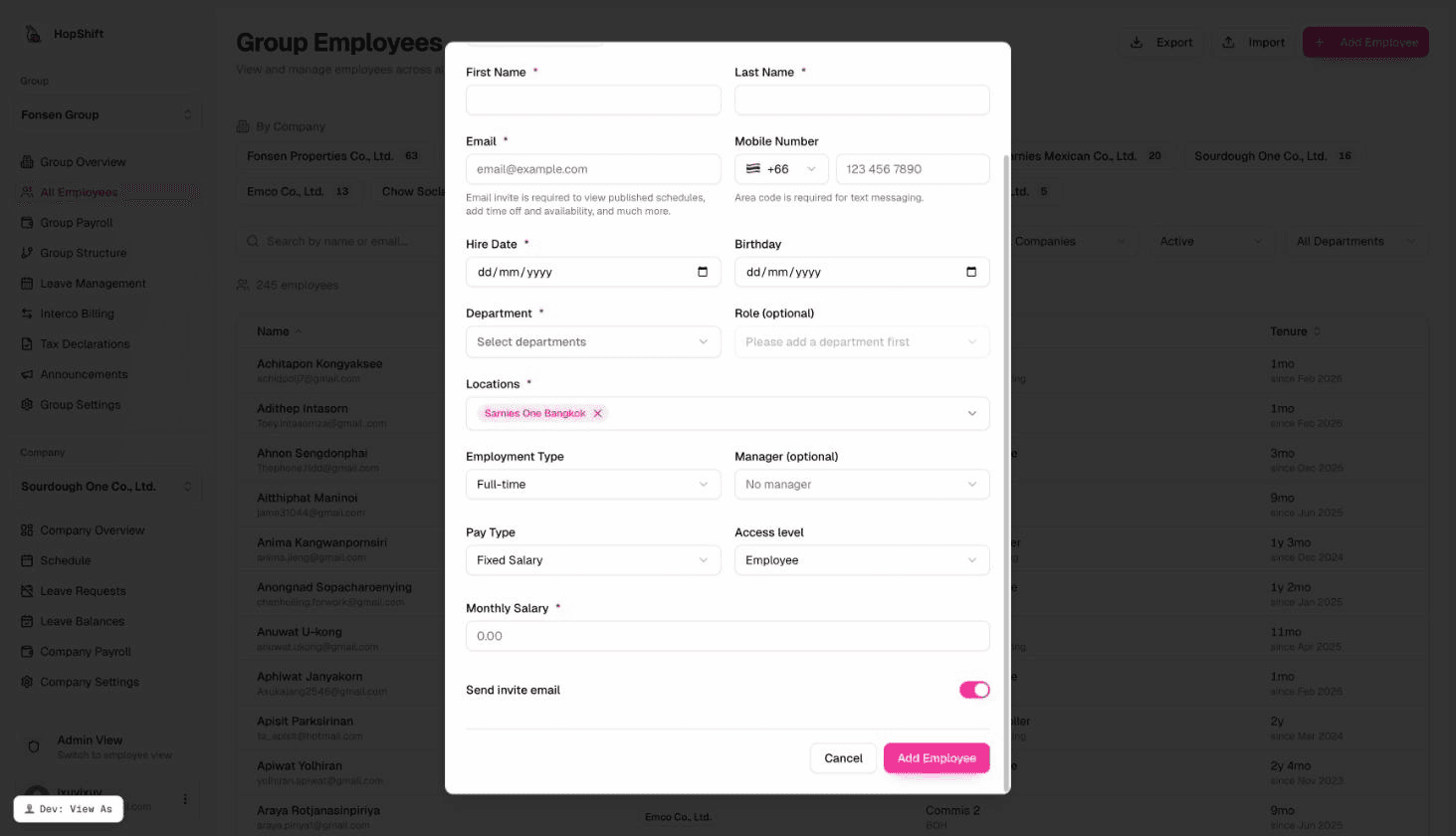
At the bottom of the form, the Send invite email toggle is on by default. When enabled, Hopshift sends the employee an email with a link to set their password and complete their profile.
Turn this off if the employee is not ready to access the system yet (e.g. they start in several weeks, or you are importing historical records).
After saving
Once you click Add Employee, the employee record is created immediately and:
- They appear in the Group → Employees directory
- They appear in the company's employee list
- Leave accrual begins from their hire date (on the next daily allocation run)
- They can be added to payroll runs, shift schedules, and leave policies
If you sent an invite, the employee receives an email and can log in to complete their profile, set availability, and submit leave requests.
What to do next
Most of the time, the next steps after creating an employee are:
- Verify compliance fields — for Thai employees, confirm National ID, Birthday, and Gender are filled
- Add bank account details — go to the employee profile → Wages tab
- Assign to a payroll run — the employee will be included automatically in the next payroll run for their company
- Set their schedule — add them to shifts from the Schedule page
Bulk importing employees
If you need to add many employees at once, use the Import function instead of adding them one by one.
- From Group → Employees, click Import.
- The Import Assistant will guide you through downloading a template, filling it in, and uploading it.
- The template supports all the fields above, including salary, hire date, national ID, and Thai names.
See Importing Employees for a full walkthrough.